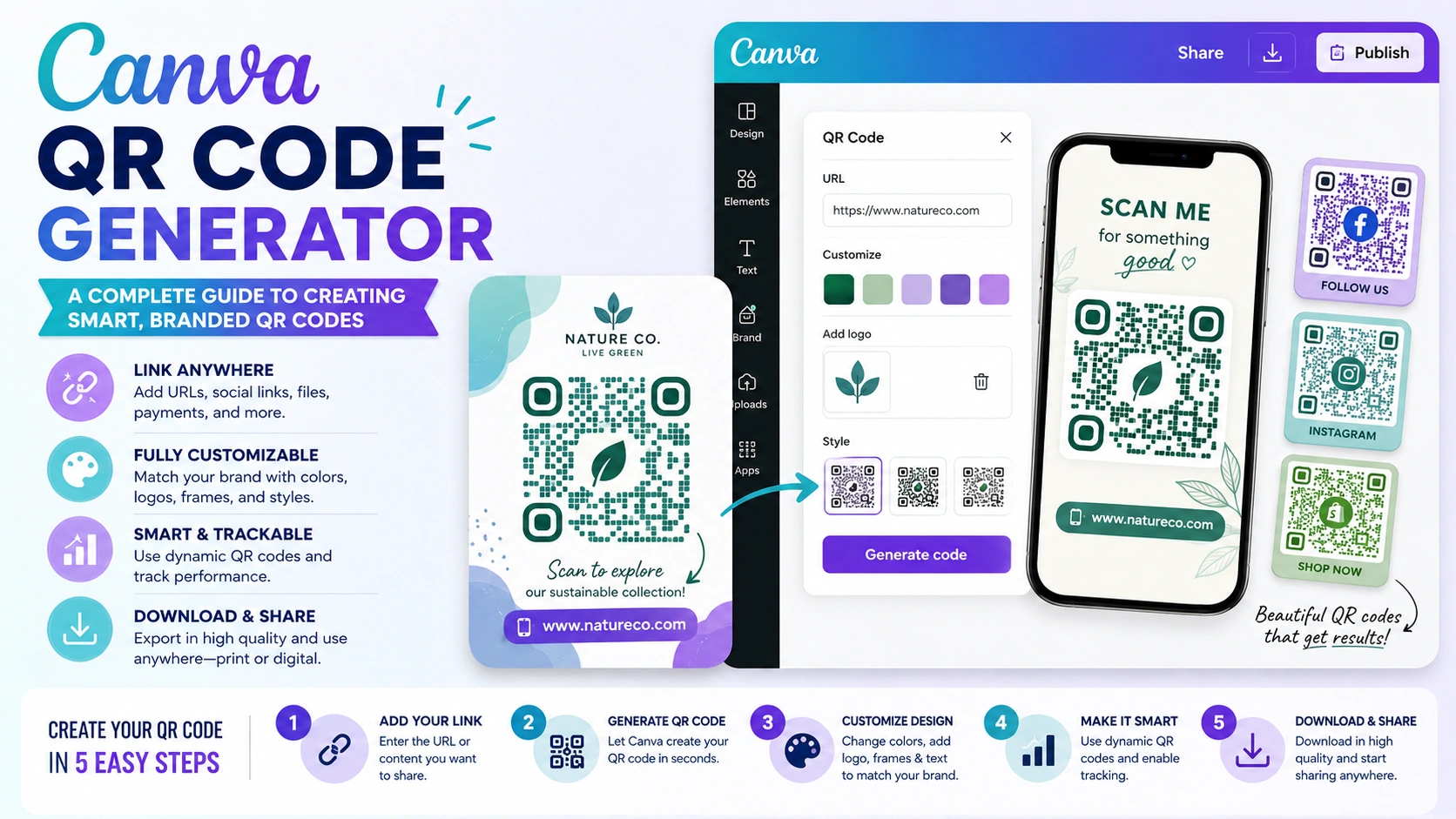
The Canva QR code generator is a built-in Canva feature that helps users create QR codes for websites, landing pages, menus, portfolios, event pages, social media profiles, and more. You can put a QR code on a design and allow customers to scan it with a smartphone instead of asking them to write a lengthy URL. This makes the user journey faster, cleaner, and more convenient.
For businesses, creators, bloggers, educators, and marketers, QR codes are now part of modern visual communication. A restaurant can link to a digital menu. A property page can be linked to by a real estate agent. A blogger can link readers to a post on newsgiga com or another website. Canva makes this process easy because you can generate the code and place it directly inside your design.
Why Use Canva for QR Codes?
Design and Function in One Place
The biggest advantage of using Canva is convenience. Making a QR code on one platform and uploading it to another design tool is not necessary. Canva allows you to design posters, flyers, cards, banners, presentations, labels, and social media graphics while adding a QR code in the same workspace.
This is especially useful for people who want professional-looking marketing materials without advanced design skills. Canva also lets you match the QR code placement with your brand style, layout, color theme, and message. The result is a clean and practical design that looks intentional instead of randomly added.
How to Create a QR Code in Canva
Basic Steps for Beginners
Creating a QR code in Canva is simple. First, open your Canva design or start a new project. Then, go to the apps section and search for “QR Code.” Paste the URL you want people to visit. After that, click generate, and Canva will create a scannable QR code for your design.
Once the code appears, you can resize it, move it, and place it anywhere on your design. Avoid placing the code on a busy background and leave enough white space around it for optimal results. Before downloading or printing, always test the QR code with your phone to make sure it opens the correct link.
| Step | Action | Purpose |
|---|---|---|
| 1 | Open Canva design | Start with your poster, flyer, card, or graphic |
| 2 | Search QR Code app | Find Canva’s QR code tool |
| 3 | Add your URL | Connect the code to a web page |
| 4 | Generate code | Create the scannable QR |
| 5 | Test before publishing | Confirm it works correctly |
Best Uses of Canva QR Codes
Practical Ideas for Business and Content
The canva qr code generator can be used in many industries. Businesses can add QR codes to brochures, business cards, packaging, and signage. Teachers can use them for classroom resources. Event planners can link to registration forms, schedules, or location maps. Bloggers and publishers can link readers to online articles, newsletter signups, or digital downloads.
For example, a content website such as newsgiga com could use QR codes on printable promotional materials to send readers directly to specific articles or category pages. This helps connect offline attention with online traffic.
Canva QR Code Generator for Marketing
Turning Offline Design into Online Action
QR codes are powerful because they bridge print and digital marketing. A printed flyer can lead to a booking page. A product label can lead to a tutorial. A restaurant table card can lead to a menu. This makes your marketing more interactive and measurable.
When using QR codes for marketing, make the call-to-action clear. Instead of only placing the code, add a short instruction such as “Scan to View Menu,” “Scan for Details,” or “Scan to Visit Our Website.” A QR code without context may be ignored, but a QR code with a clear benefit encourages action.
Design Tips for Better QR Codes
Keep It Clean and Easy to Scan
A QR code ought to be straightforward, unambiguous, and simple to scan. Avoid making it too small, especially for printed designs. Keep strong contrast between the code and background. Black on white is usually the safest option. If you use colors, make sure the code still scans properly.
Do not cover the code with heavy graphics, icons, or decorative elements. Canva allows you to create beautiful designs, but the QR code must remain functional. A good design should support the QR code, not make it harder to use.
| Design Element | Recommended Practice | Avoid |
|---|---|---|
| Size | Keep large enough to scan | Very tiny QR codes |
| Contrast | Dark code on light background | Low-contrast colors |
| Space | Add margin around the code | Crowded placement |
| Testing | Scan before publishing | Assuming it works |
| CTA | Add clear instruction | No explanation beside code |
Canva QR Code Generator for Print Materials
Flyers, Menus, Cards, and Posters
Canva is especially useful for print-ready QR code designs. You can design flyers that direct customers to landing pages, restaurant menus with digital ordering links, posters with event registration links, and business cards with website links.
For print, always download your design in a high-quality format. PDF Print is usually a strong choice for professional printing. Also, make sure your QR code is not placed too close to the edge of the design, where it might be trimmed. Testing a printed sample is the safest way to confirm readability.
Canva QR Code Generator for Digital Content
Social Media, Presentations, and Online PDFs
QR codes are not only for printed materials. They can also be used in digital presentations, online brochures, downloadable guides, and social media graphics. For example, a presenter can add a QR code to a slide so the audience can instantly access a resource, form, or website.
Digital QR codes work best when the audience is viewing the design on a second screen or in a setting where scanning is natural. In some cases, a clickable link may still be better. The best approach is to use both when possible: add a QR code for scanning and a short link for clicking.
Common Mistakes to Avoid
Do Not Forget Testing and Clarity
Making a QR code and releasing it without testing is a frequent error. Even if the code looks correct, the link may be wrong, broken, or difficult to open. Another mistake is using a QR code without explaining what users will get after scanning.
Also, avoid linking to pages that are not mobile-friendly. Since most QR codes are scanned on phones, the destination page should load quickly and look good on mobile screens. The QR code is only the first step. The page experience after scanning matters just as much.
FAQs About Canva QR Code Generator
Is the Canva QR code generator free?
Canva offers QR code generation inside its platform, and many users can access it while creating designs. Some design features, templates, or brand tools may depend on your Canva plan.
Can I use Canva QR codes for business?
Yes, you can use Canva QR codes for business cards, flyers, menus, posters, packaging, presentations, and other marketing materials.
Can I customize the QR code in Canva?
You can resize and position the QR code inside your Canva design. However, always keep the code clear, high-contrast, and easy to scan.
Do Canva QR codes expire?
Static QR codes usually continue working as long as the destination URL remains active. If the linked page is removed or changed, the QR code may no longer be useful.
Should I test my QR code before printing?
Yes. Always scan the QR code with a smartphone before downloading, sharing, or printing your design.
Conclusion
The canva qr code generator is a practical tool for anyone who wants to connect offline designs with online destinations. It is simple enough for beginners but useful enough for businesses, marketers, educators, creators, and publishers. With Canva, you can create a QR code and place it directly inside a polished design without switching between multiple platforms.
The key is to keep the QR code clear, scannable, and supported by a strong call-to-action. Whether you are designing a menu, poster, business card, flyer, presentation, or digital guide, Canva helps you turn a simple design into an interactive experience. When used correctly, QR codes can improve engagement, make information easier to access, and guide users smoothly from design to action.